
Support service provided by Wanido
Once Two-Factor Authentication has been enabled the following message will be displayed upon your next login.
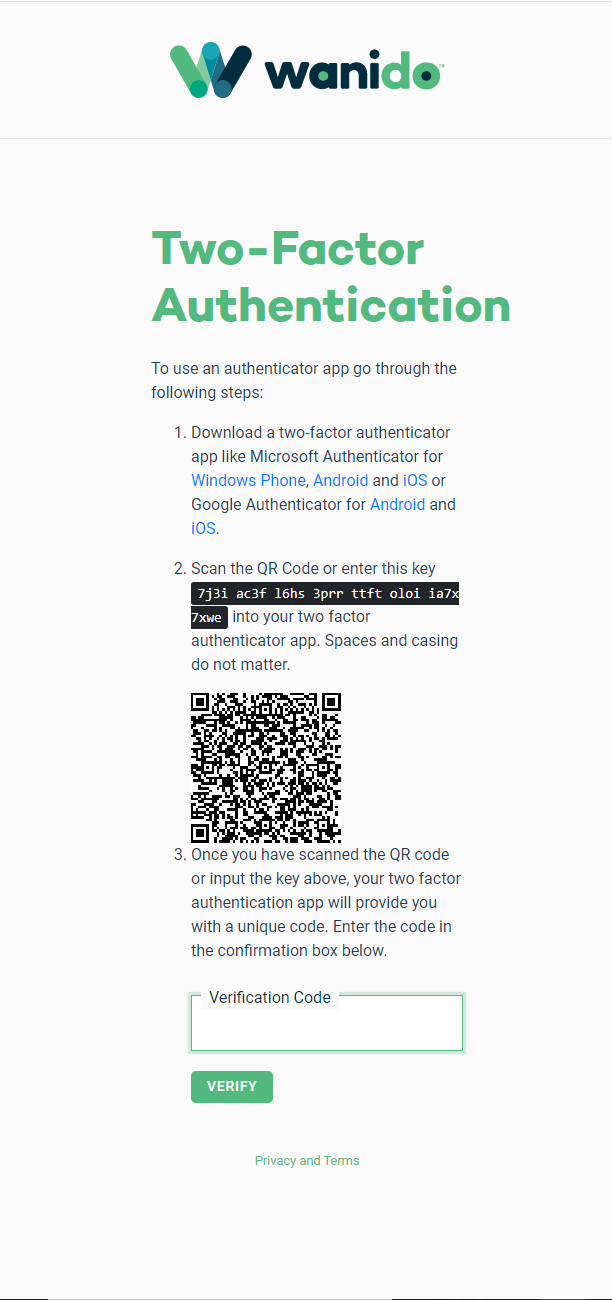
You will need to download a two-factor authentication app.
- Microsoft Authenticator
- Google Authenticator
Once you have downloaded the two-factor authentication app you will need to Scan the QR Code or enter the key (Spaces and casing do not matter) displayed into your two-factor authenticator app
Once you have scanned the QR code or inputted the key, your two-factor authentication app will provide you with a unique code.
You will need to enter that code in the Verification box and click Verify.
You will then be taken to a screen that will display your Recovery codes which you will need to store in a safe place.
.
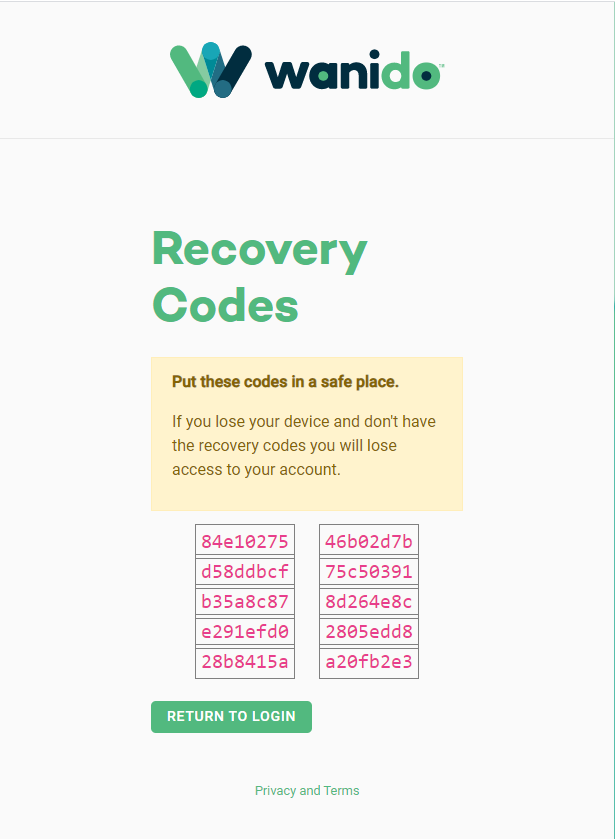
Click the Return to Login.
Once you have completed setting up two-factor authentication you will be prompted to enter a unique code each time you access the application.
The unique code will be generated in the two-factor authentication app you downloaded.
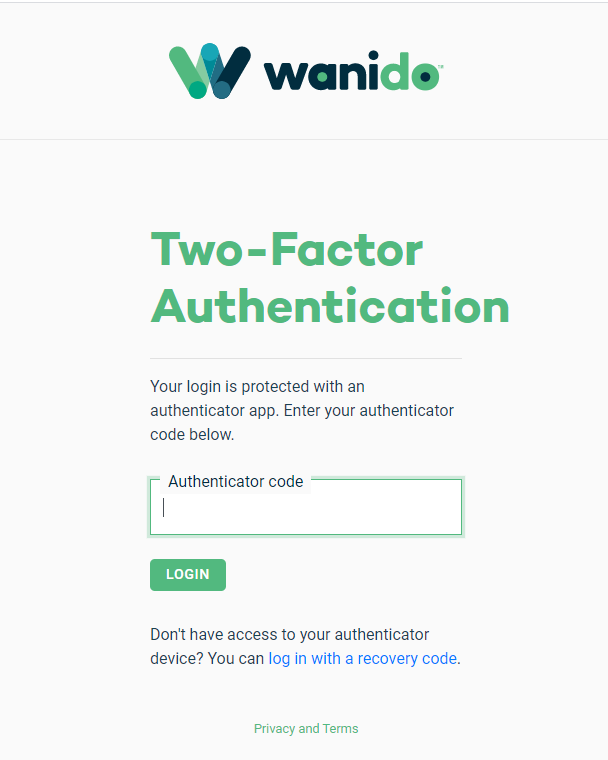
If you lose or do not have access to your authenticator device, you will need to use the “log in with a recovery code” option.
You will be prompted to enter one of the recovery codes you were provided (note each code can only be used once).
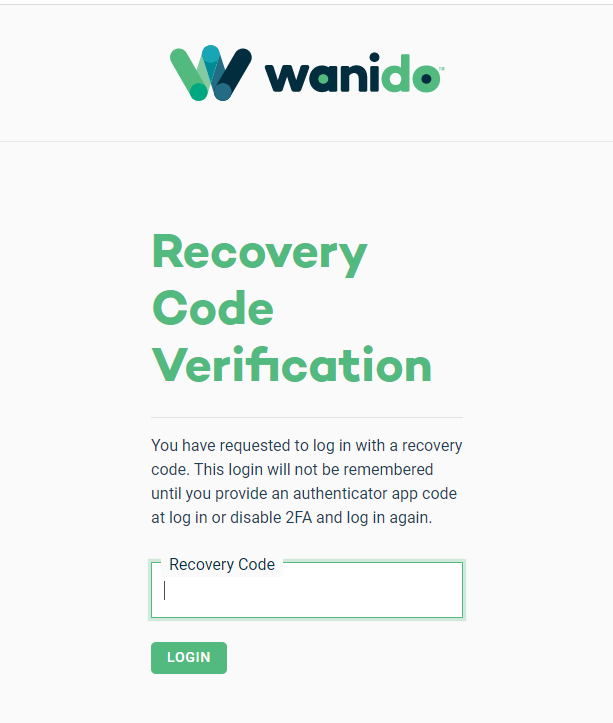
Once you have successfully entered a recovery code, you will need to re-setup two-factor authentication using the above steps.