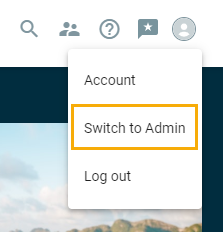
To create a company hosted interest group, navigate to your Account picture in the upper right-hand corner.
*If you are a consultant user, you will already be on the Admin side of the site or will need to first click and toggle to the Employee Portal.

Then select "Switch To Admin"
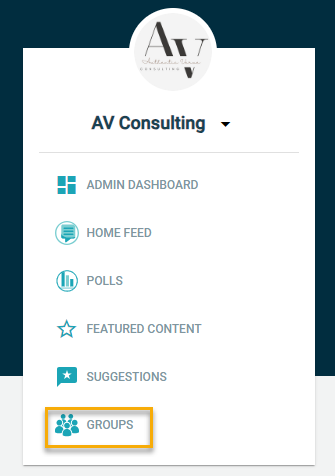
Select Groups on the left.
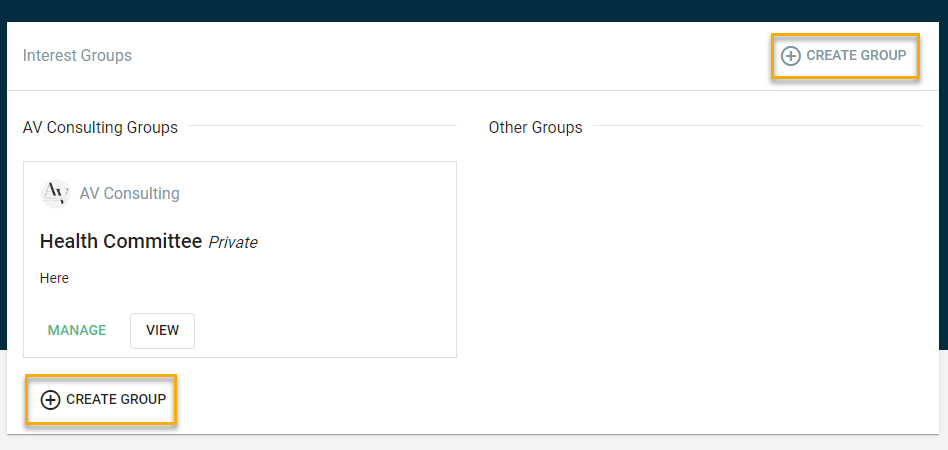
Select Create Group.
This is also where you can manage other groups that have been created by other Admins or public groups created by people.
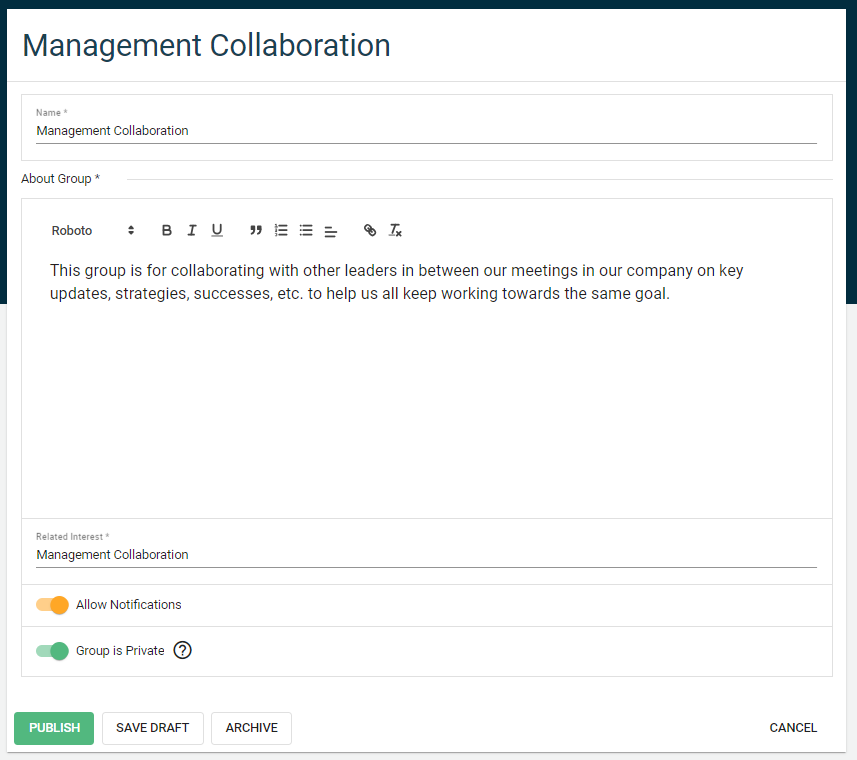
Enter the name of the group, a description of the group, and the interest of the group.
If this is a public group that anyone in the company can join, you can select Publish.
This will share the group on the communication feed and be visible on the Culture tab for everyone to see and have the ability to join.
If this is a group you only want to invite a group of people to (ex; managers, a committee, benefit eligible employees), toggle the Group is Private toggle on. Only people who have been invited or have joined will be able to see the group.
If you would like the members in the private group to receive email notifications any time there is a new post in the group, toggle the Allow Notifications option on.
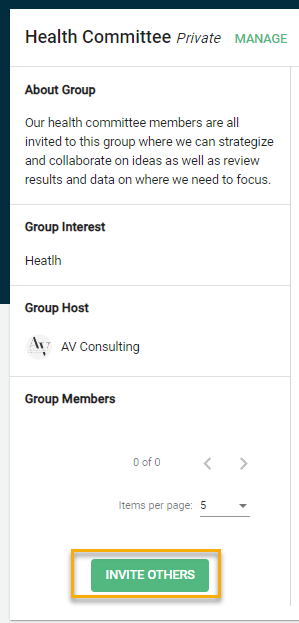
Once the group is created, you can invite people to the group.