To Add a quick link to the Company Hub, go to the admin dashboard in the platform and click on the menu icon in the upper right-hand corner.
Click the New Quick Link button on the right side of the page.

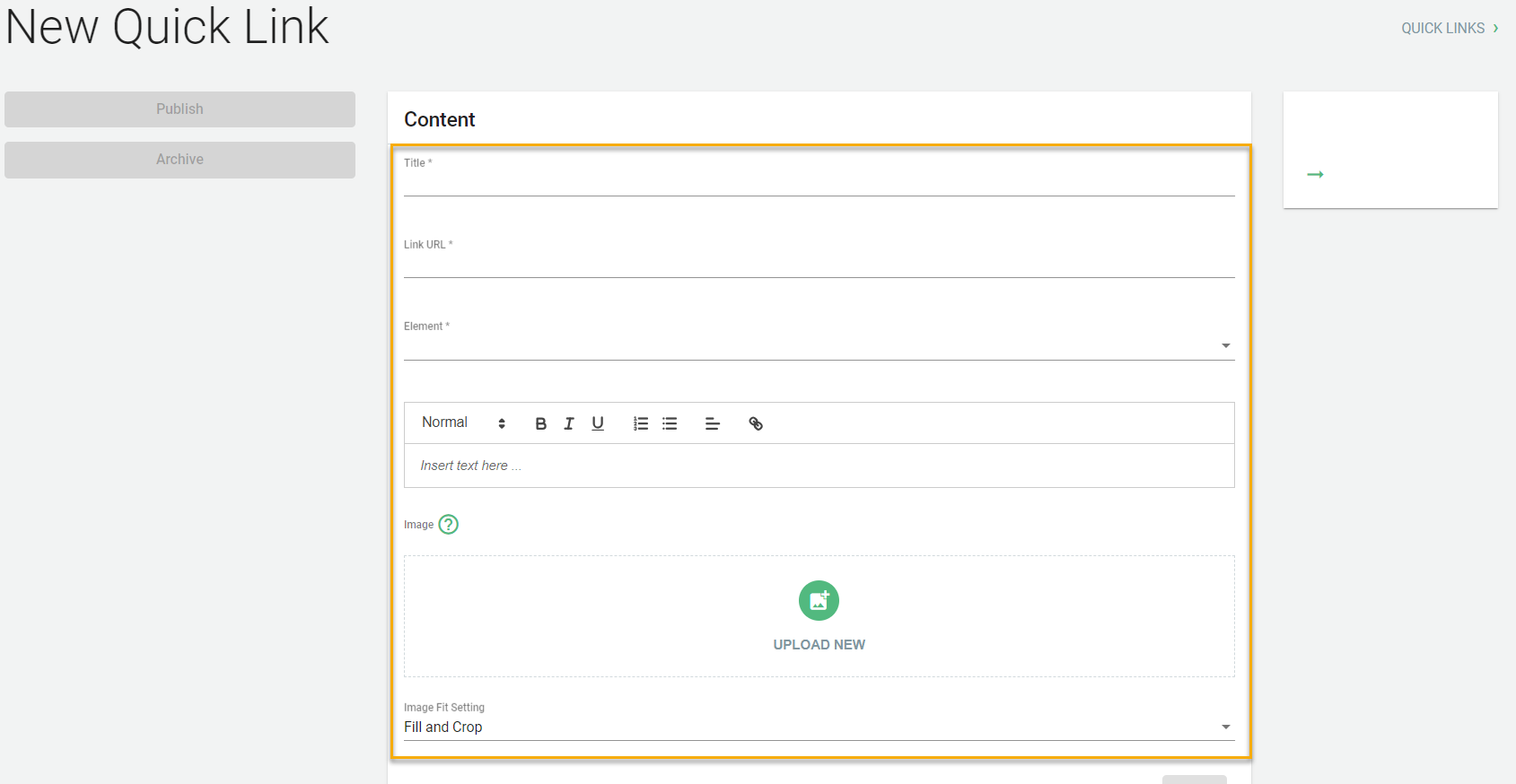
Enter in the Title, Link URL, select the Element and Sub-Element, enter a description and upload an image.
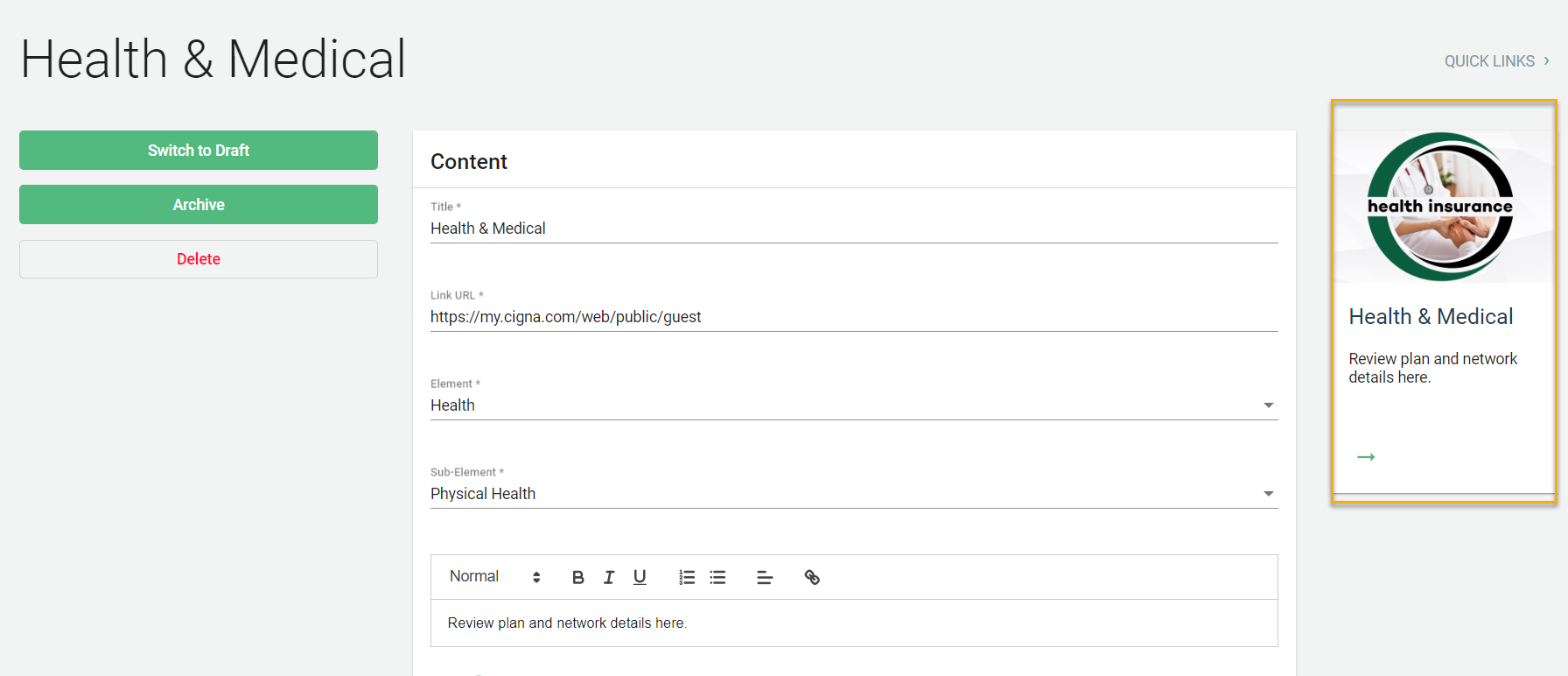
A preview of the tile will show in the upper right-hand area.
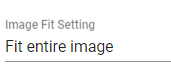
If you need to adjust the image fit, select the drop down and change from Fill and Crop to Fit Entire Image.
To see the recommended dimension sizes for images, click here.
Make sure you select Save or Publish.
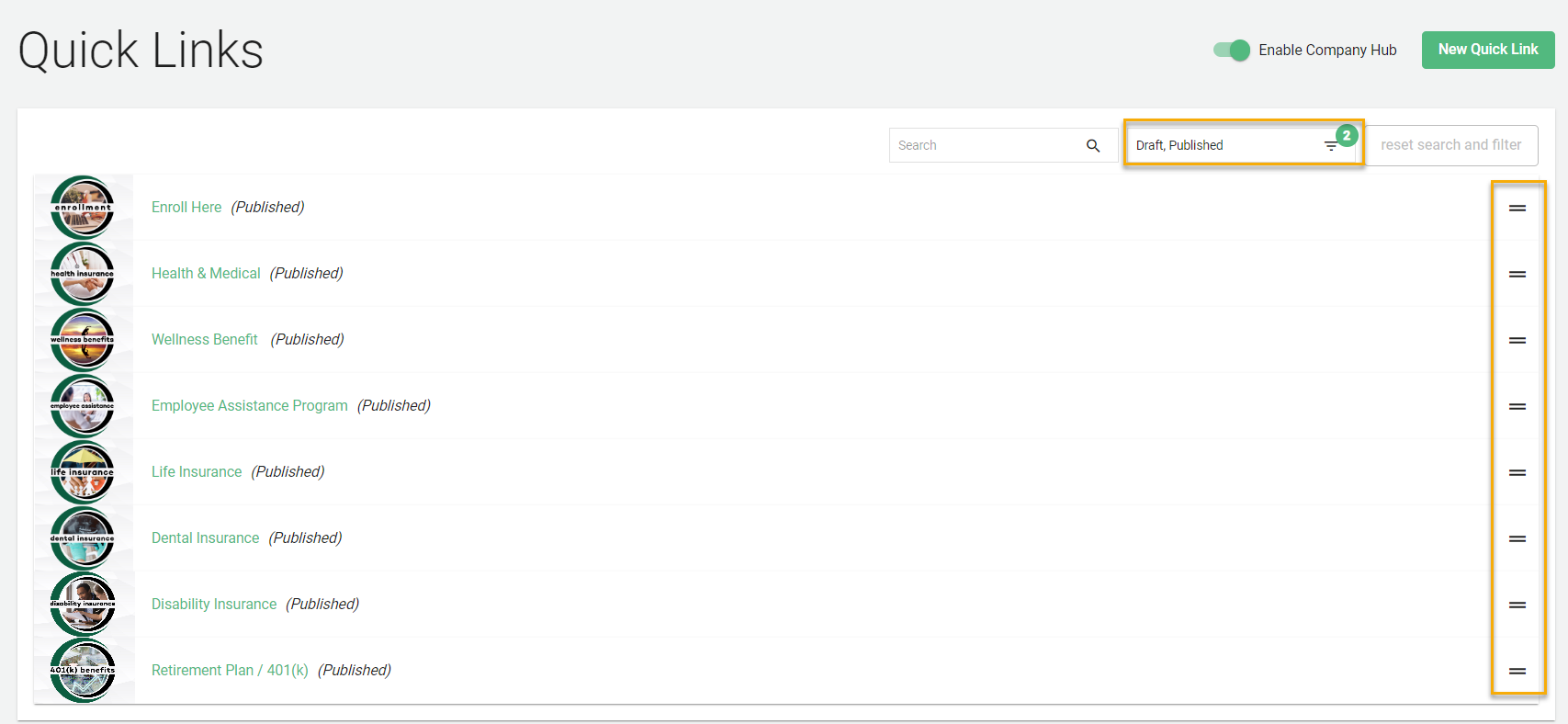
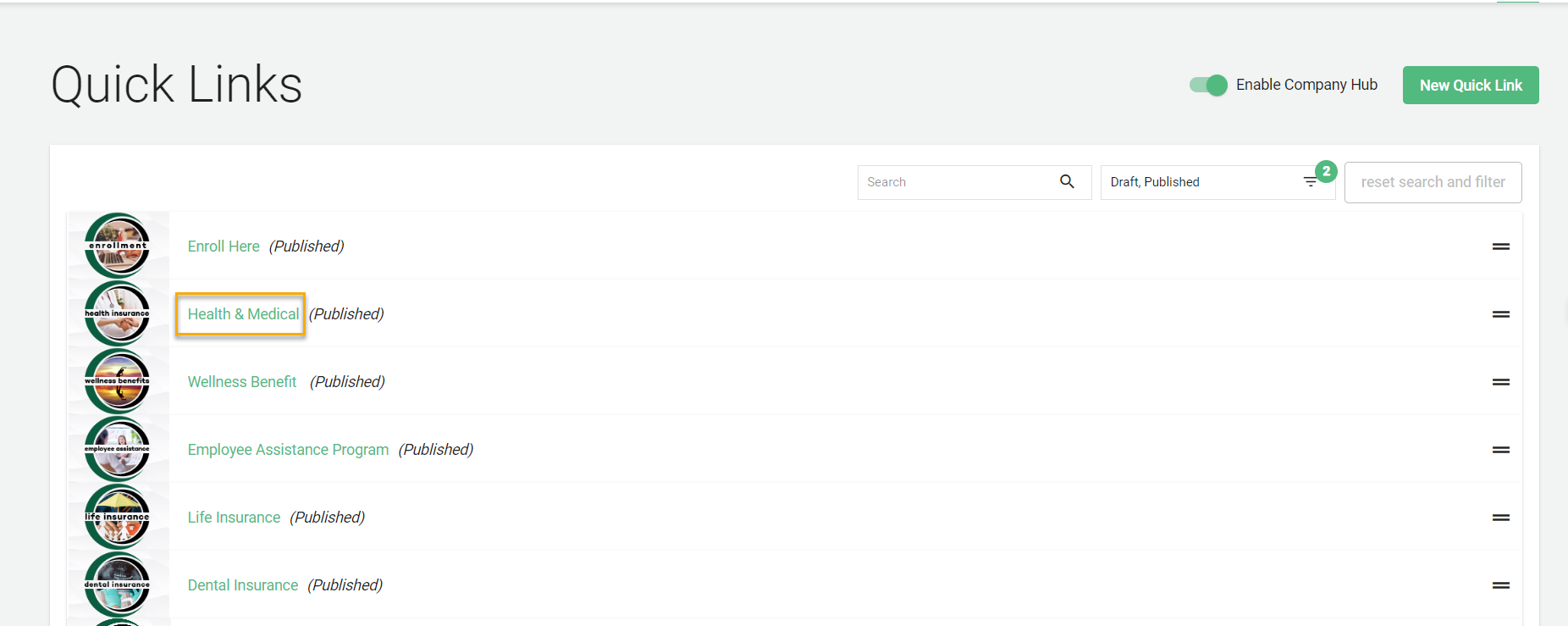
All draft/published quick links will appear in the Quick Links list and can be reordered by clicking and dragging the double line icon in the far right hand column for each item.
To see the recommended dimension sizes for images, click here.
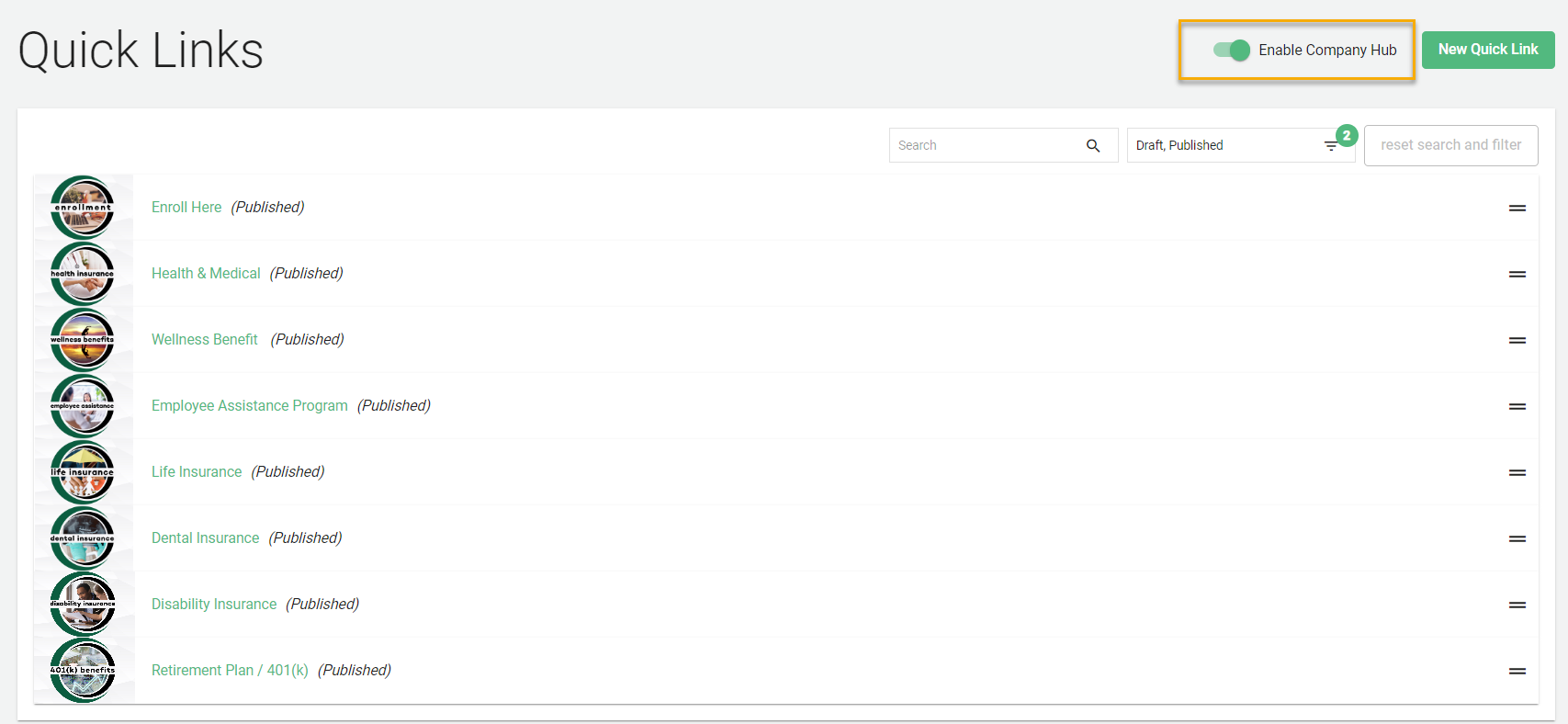
If you aren't seeing the Company Hub icon on the employee view, make sure that the "Enable Company Hub" is toggled on.
How to Edit Existing Quick Links
To edit the quick links for the Company Hub, go to the admin dashboard in the platform and click on the menu icon in the upper right-hand corner.
To update an existing link, click on the link title.
Make the updates needed and then click Save at the bottom. Changes are immediate so a quick refresh on the employee/consultant view will show the changes.
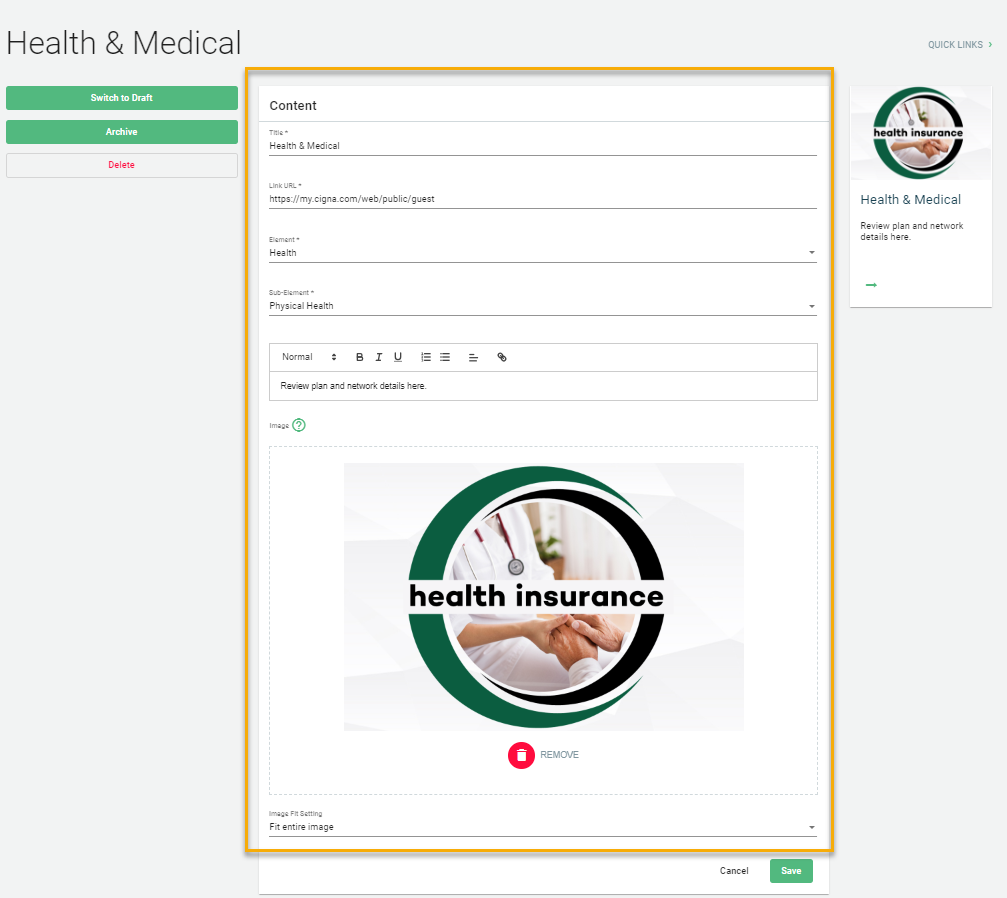
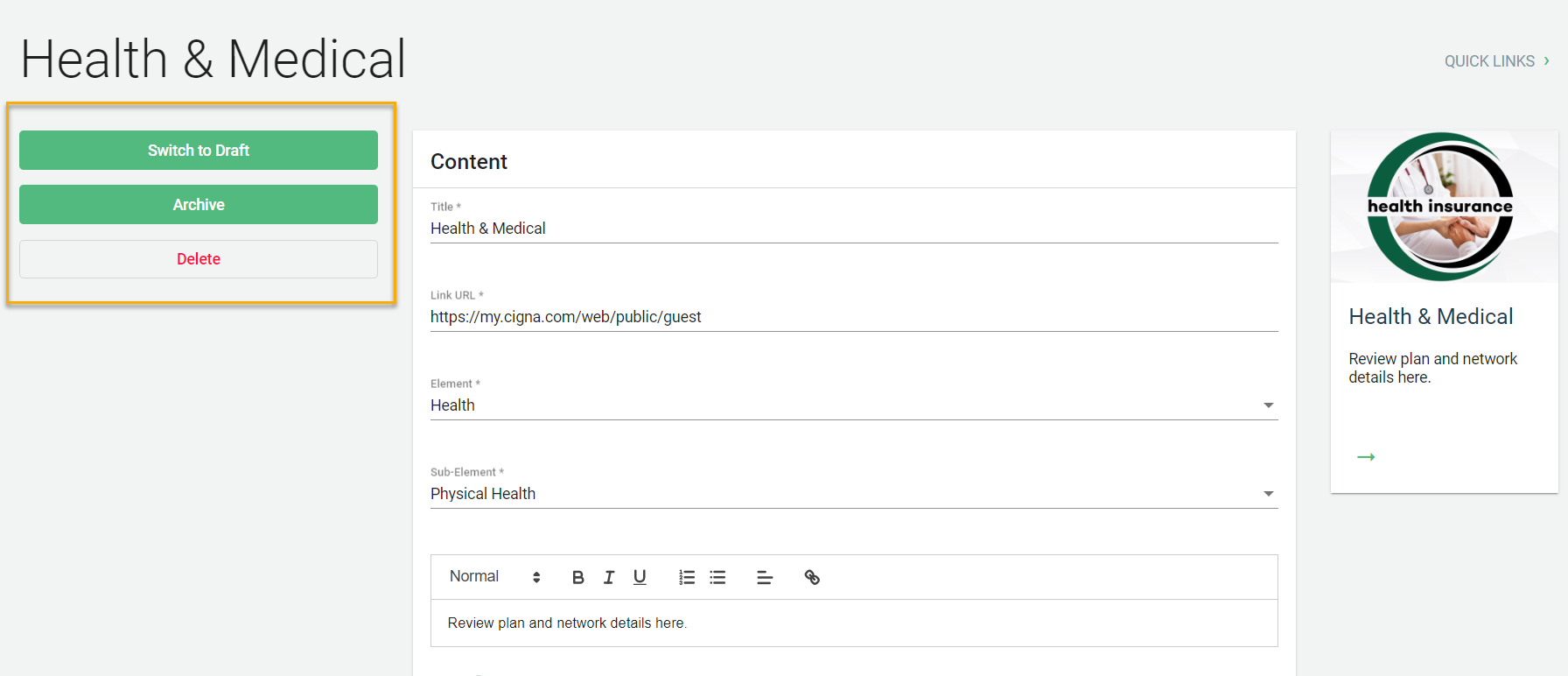
If you need to switch something to published/draft, archive or delete a quick link this can be done on the left hand side when clicked into one of the quick links.