
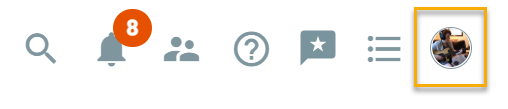
From the *Employee Portal, click on your Profile Photo in the upper right-hand corner of your screen.
Select Switch to Admin.*
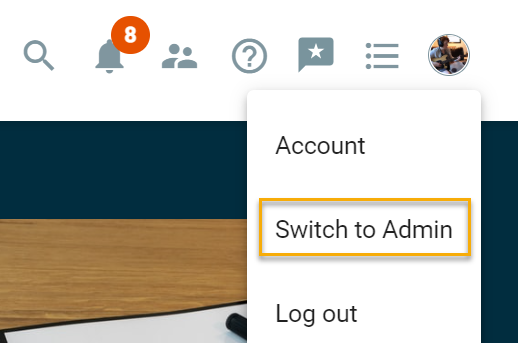
*If you see Employee Portal as an option, you will need to do that before you can select Switch to Admin.
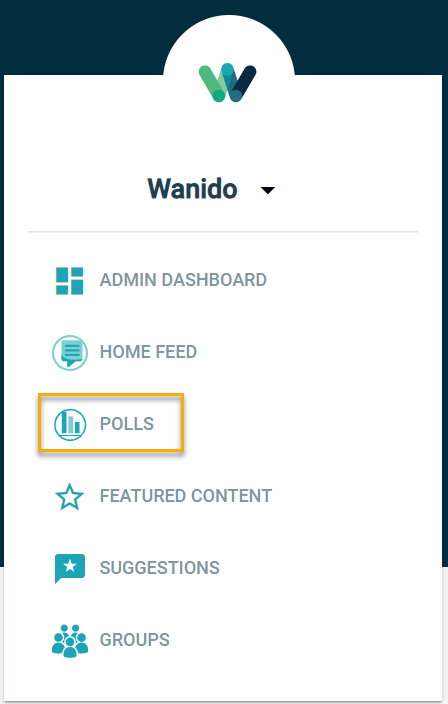
Click on Polls.
Click on Add Poll.
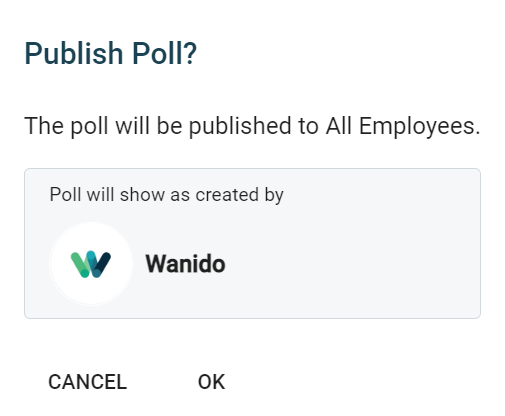
Once you are ready to publish the poll, a confirmation will pop up confirming the targeted audience and poll creator.
Use this diagram if you have questions regarding the purpsose of each section within the poll.
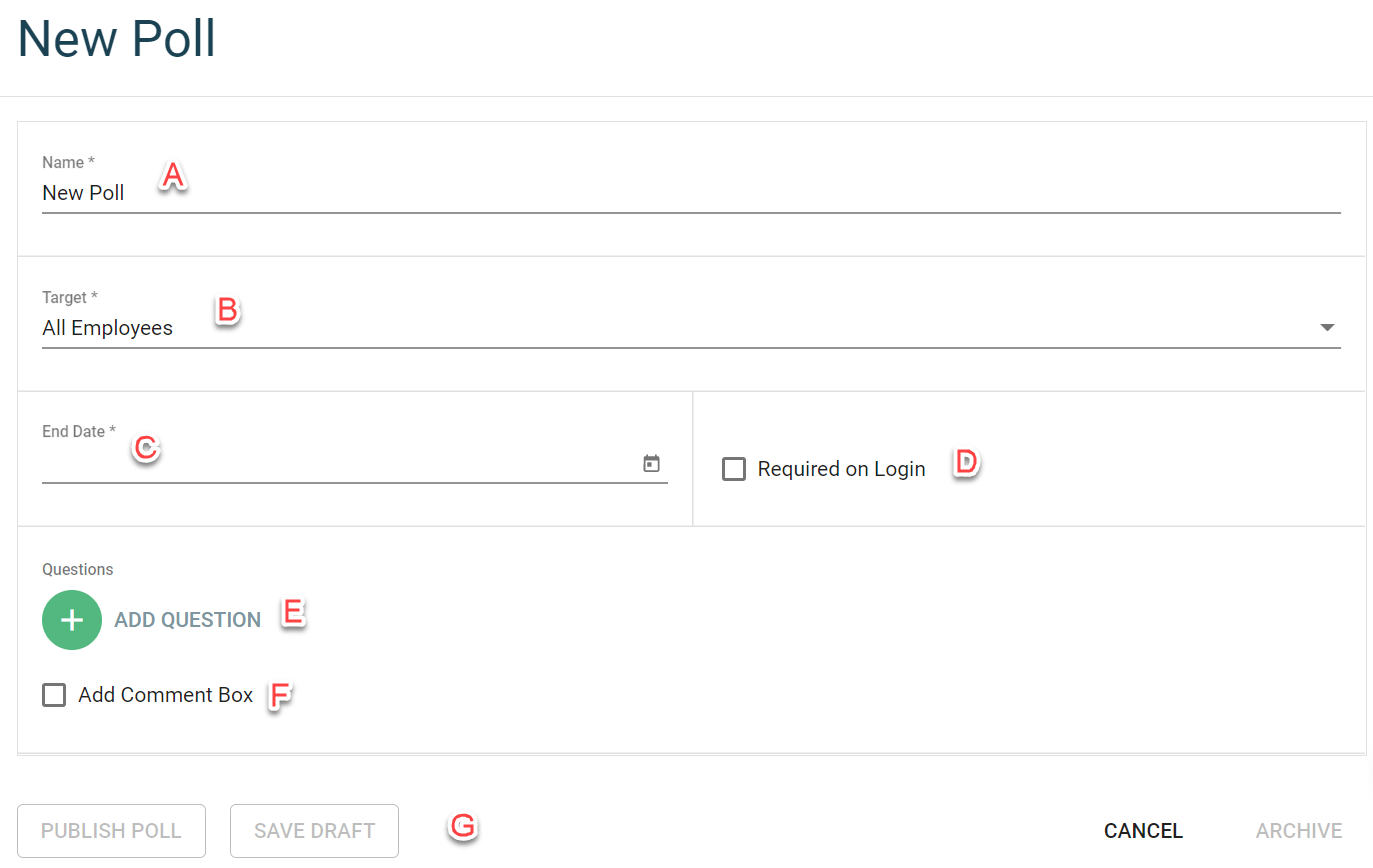
A: The title of the poll. This title will be visible to employees.
B: Default audience is all employees but you can target a specific location or department.
C: The last day employees can take the poll.
D: If checked, employees will need to complete the poll before they can proceed to any other platform functionality.
E: Click on the green circle to add up to 3 questions questions to your poll.
F: Allow employees to provide additional details or suggestions related to the poll.