
To post Featured Content for your employees, navigate to your Account picture in the upper right-hand corner.
*If you are a consultant user, you will already be on the Admin side of the site or will need to first click and toggle to the Employee Portal.
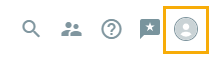
Then select "Switch To Admin"
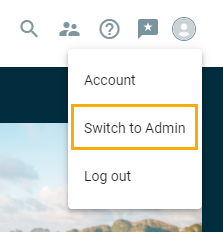
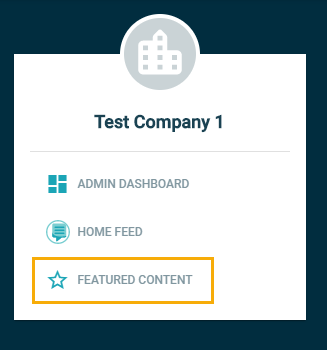
Click on "Featured Content"
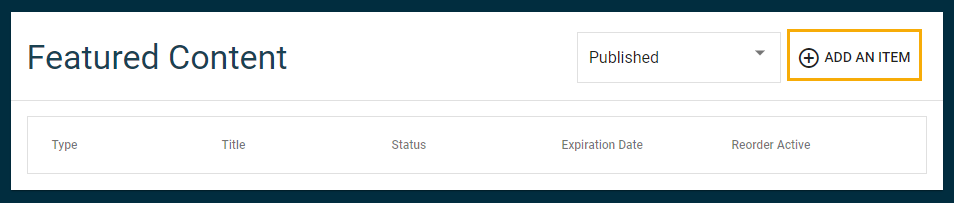
To add Featured Content, select "Add An Item" in the upper right-hand corner of the Featured Content section. If you add more than one item, they will appear in a carousel fashion.
Next you will select which type of featured item you would like to publish. Required fields include the title, element, and sub-element to tie each content to.
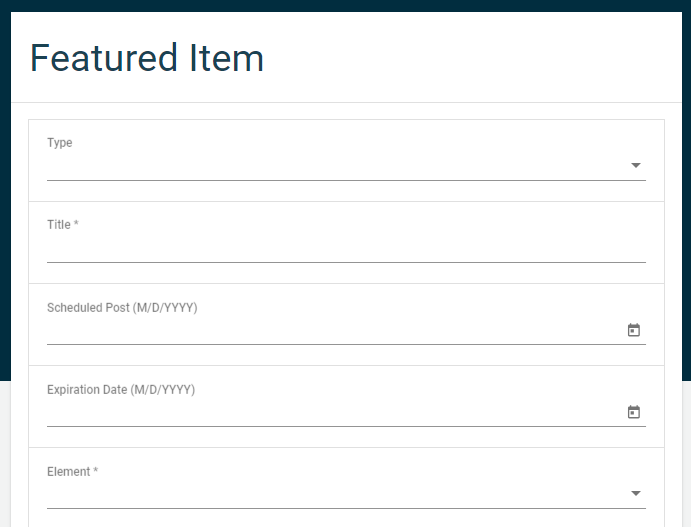
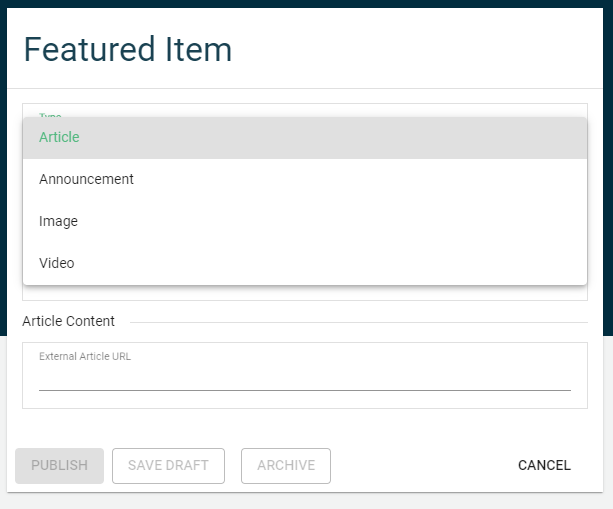
For Type, you have the option of choosing an article, announcement, image, or video.
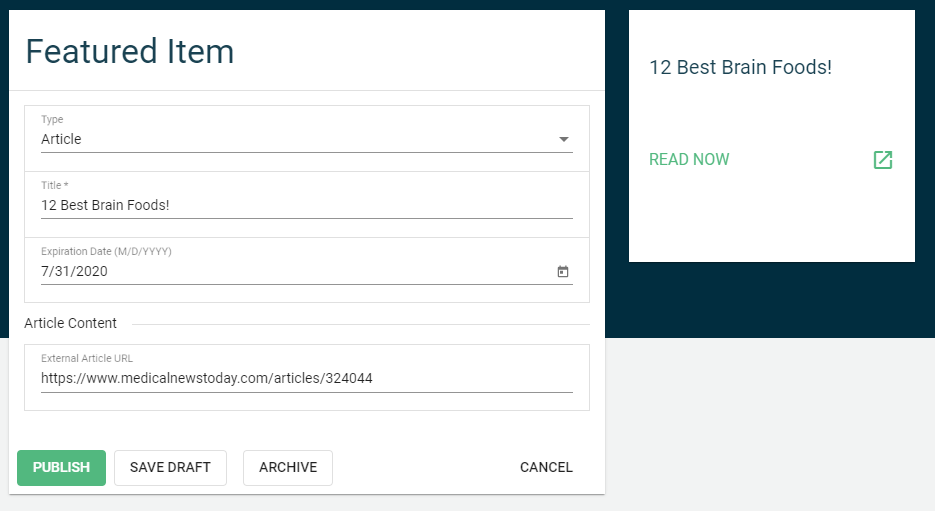
To post an article, select "Article" under Type, add in your title and an expiration date, if desired, then copy and paste the article link into the Article Content section.
You will be able to see the preview of your Featured Content to the right.
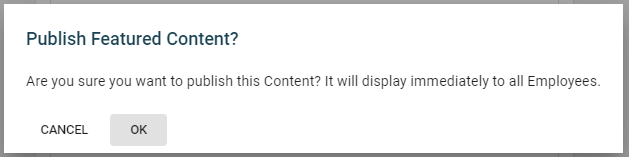
Once you have selected Publish, you will be prompted with a confirmation on your post.
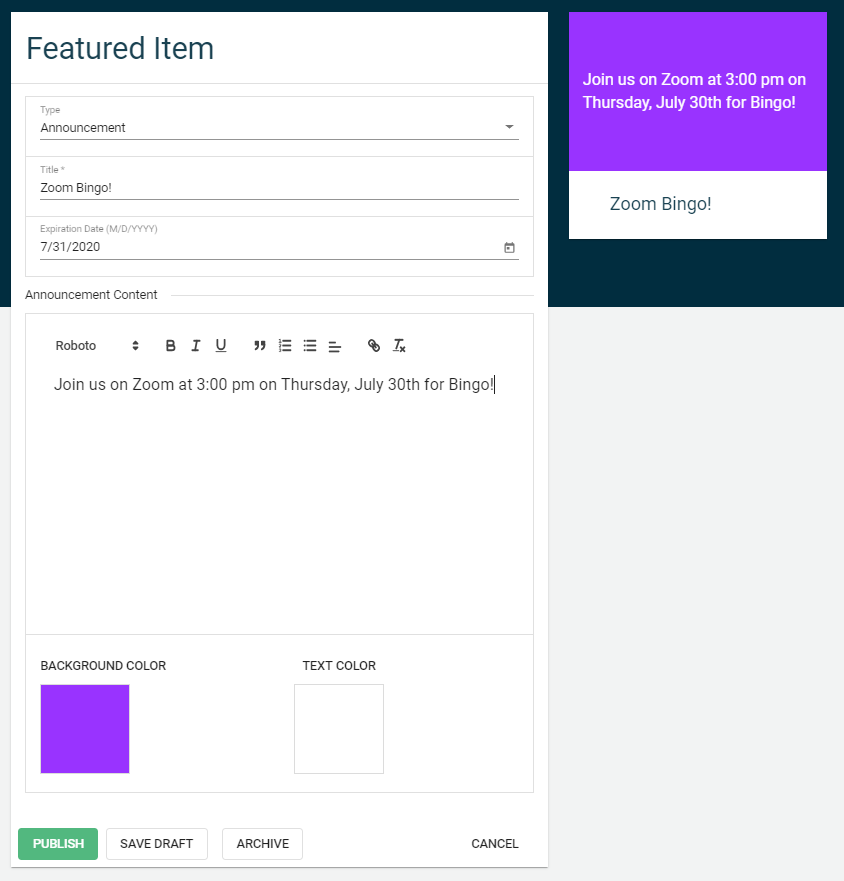
To post an announcement, select "Announcement" under Type, add in your title, a scheduled date and an expiration date, if desired, then add in your announcement along with selecting which background and text color you would like.
You will be able to see the preview of your Featured Content to the right.
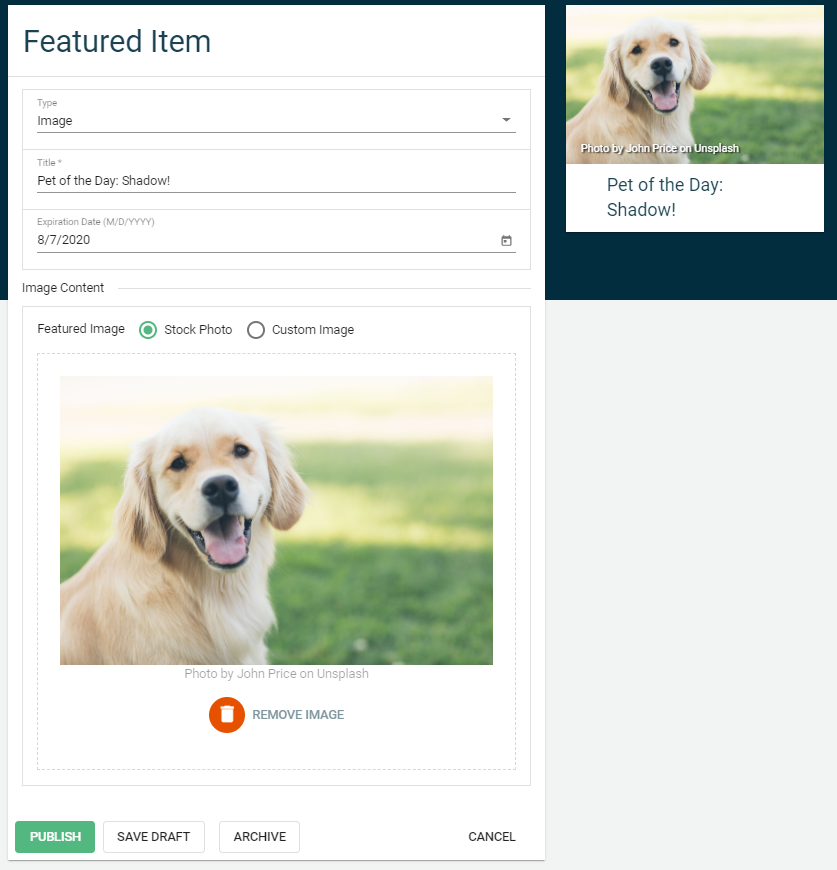
To post an image, select "Image" under Type, add in your title and an expiration date, if desired, then either select a stock photo or upload a custom image.
You can also add a URL that will link to the Title text.
You will be able to see the preview of your Featured Content to the right.
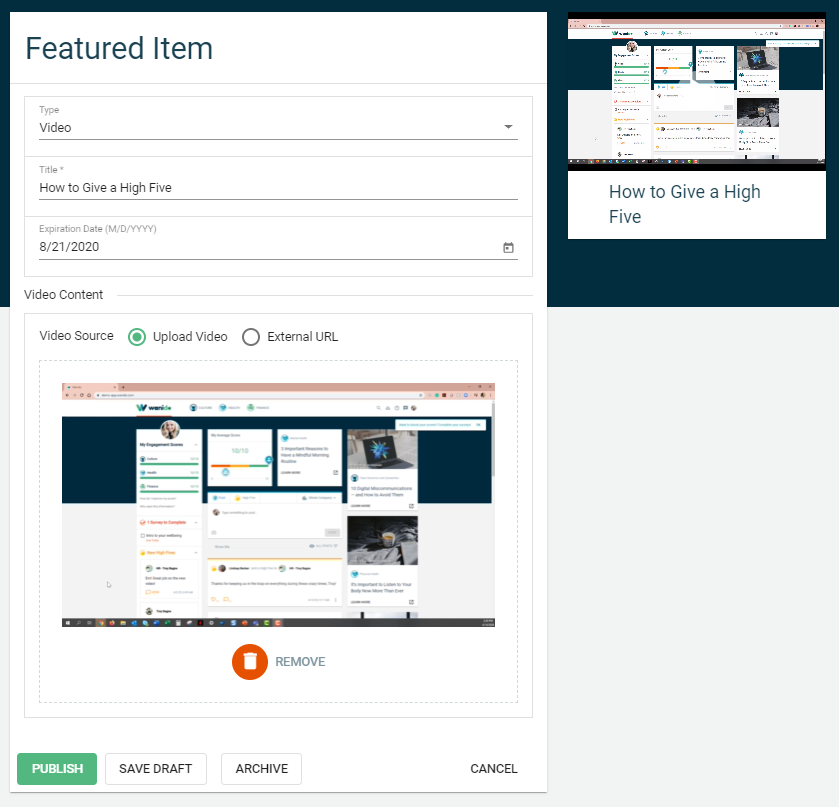
To post a video, select "Video" under Type, add in your title, scheduled date and an expiration date, if desired, then you can either upload a video or embed an external URL.
You will be able to see the preview of your Featured Content to the right.
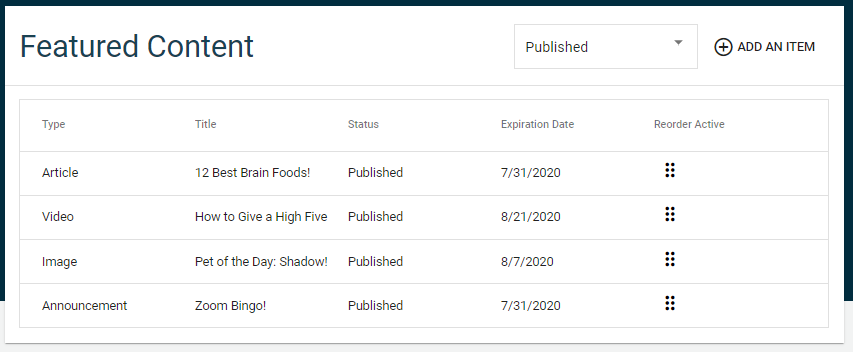
You can then view all of your published Featured Content and also manage and rearrange the order to appear in the carousel. Any new items will appear at the bottom of the list unless reordered.
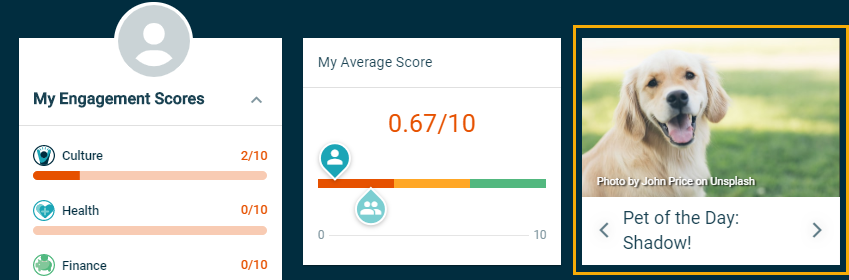
Employees will be able to view the published Featured Content on the dashboard next to their Average Score. The content will appear in a carousel fashion.
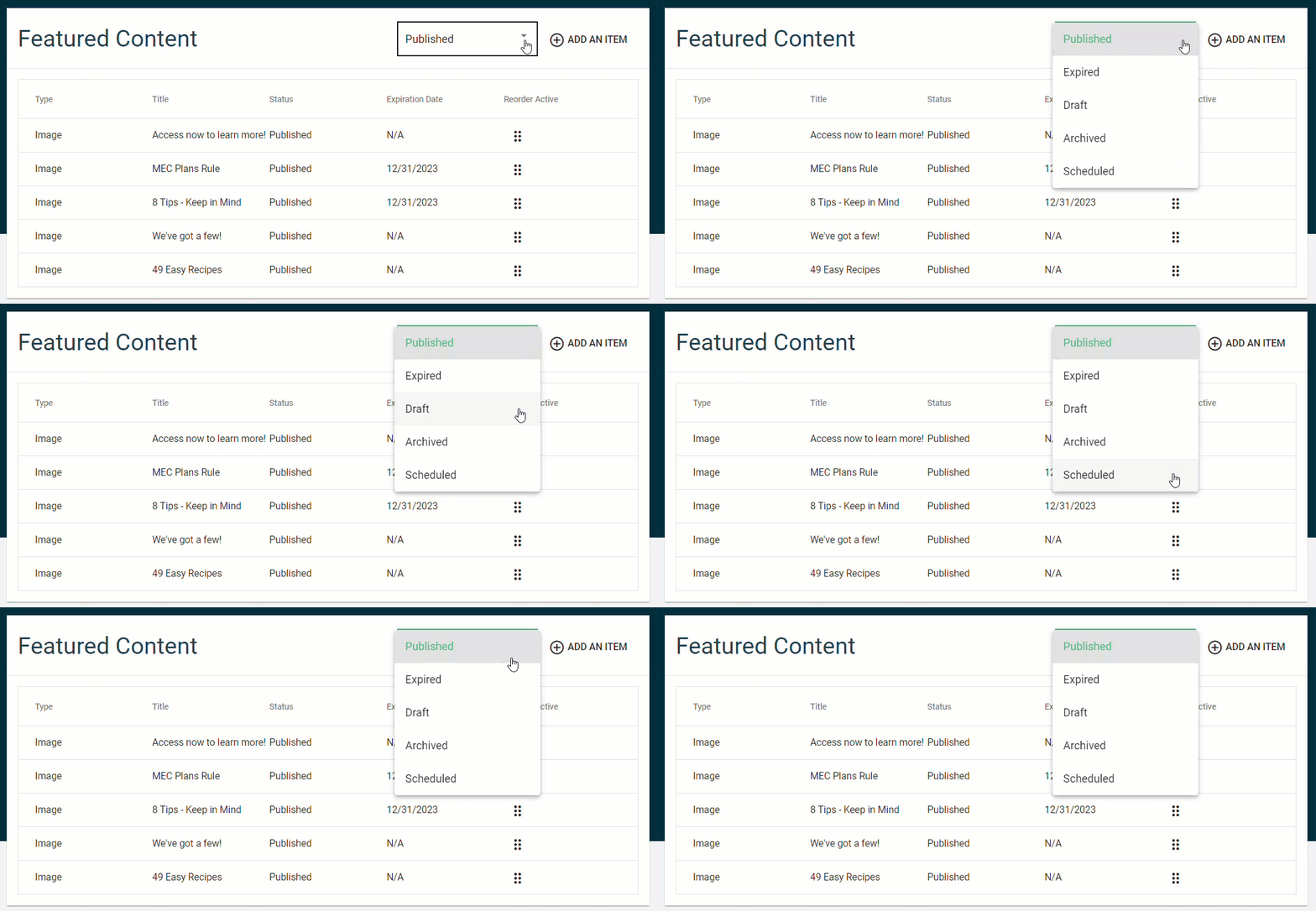
To see any scheduled/draft/expired/archived content items, click on the drop down to filter.
Each time a Featured Content item is published it will push out an email to all employees who have been invited to the platform.