
Support service provided by Wanido
Turn on Two-Factor Authorization by navigating to your Company's account information.
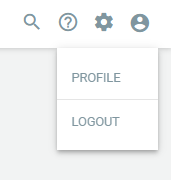
Click on the pencil icon to edit the company information.

Scroll to the bottom of the company information and turn on the Two-Factor Authorization.

Once Two-Factor Authentication has been enabled the following message will be displayed upon your next login.
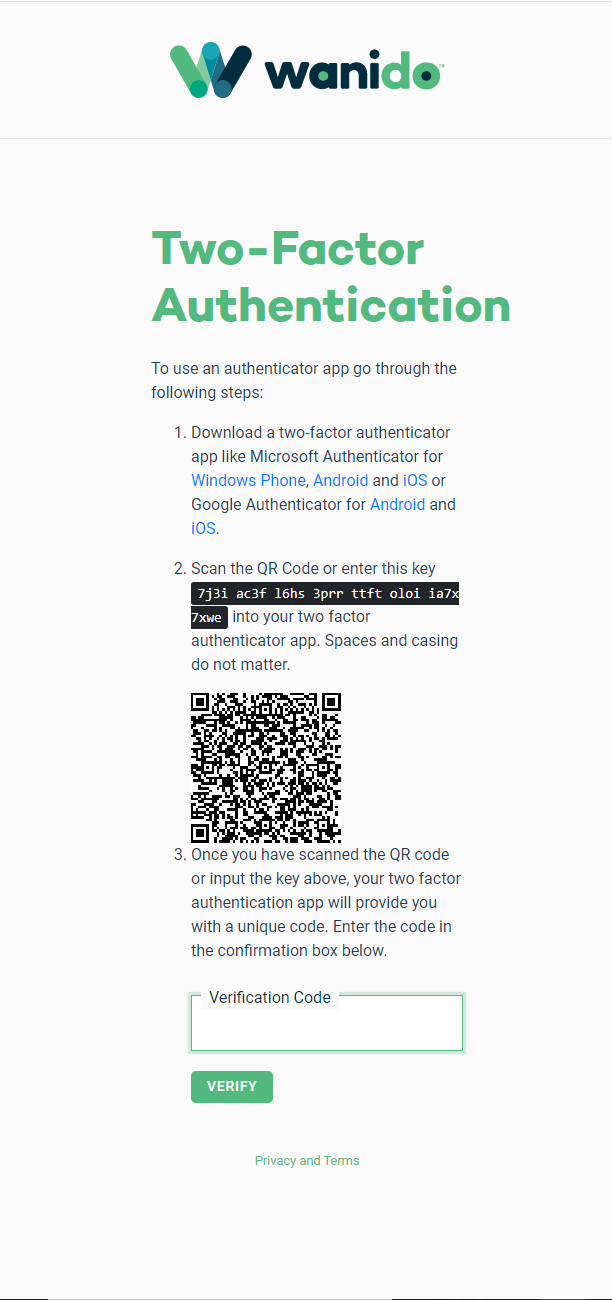
You will need to download a two-factor authentication app.
- Microsoft Authenticator
- Google Authenticator
Once you have downloaded the two-factor authentication app you will need to Scan the QR Code or enter the key (Spaces and casing do not matter) displayed into your two-factor authenticator app
Once you have scanned the QR code or inputted the key, your two-factor authentication app will provide you with a unique code.
You will need to enter that code in the Verification box and click Verify.
You will then be taken to a screen that will display your Recovery codes which you will need to store in a safe place.
.
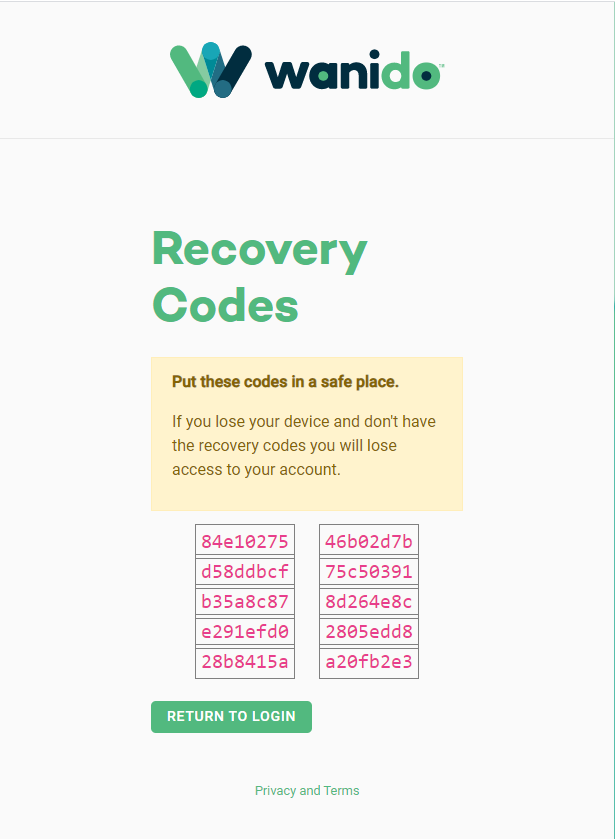
Click the Return to Login.
Once you have completed setting up two-factor authentication you will be prompted to enter a unique code each time you access the application.
The unique code will be generated in the two-factor authentication app you downloaded.
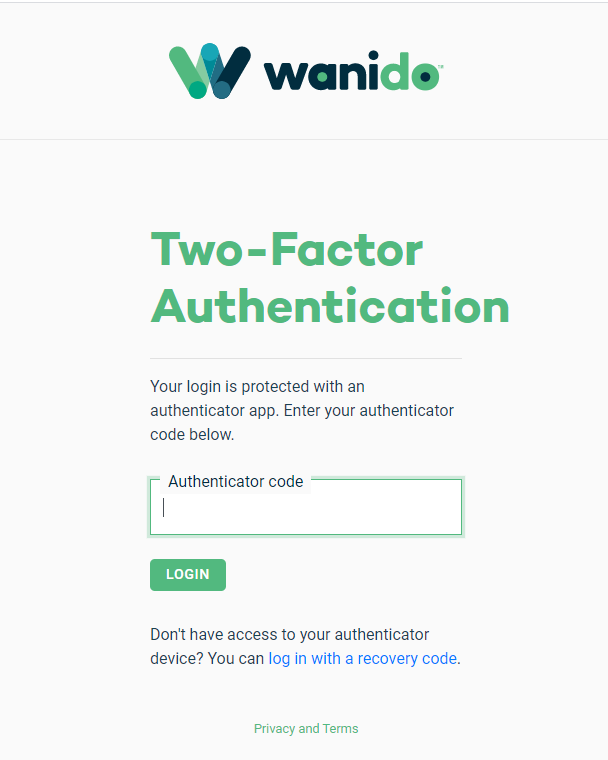
If you lose or do not have access to your authenticator device, you will need to use the “log in with a recovery code” option.
You will be prompted to enter one of the recovery codes you were provided (note each code can only be used once).
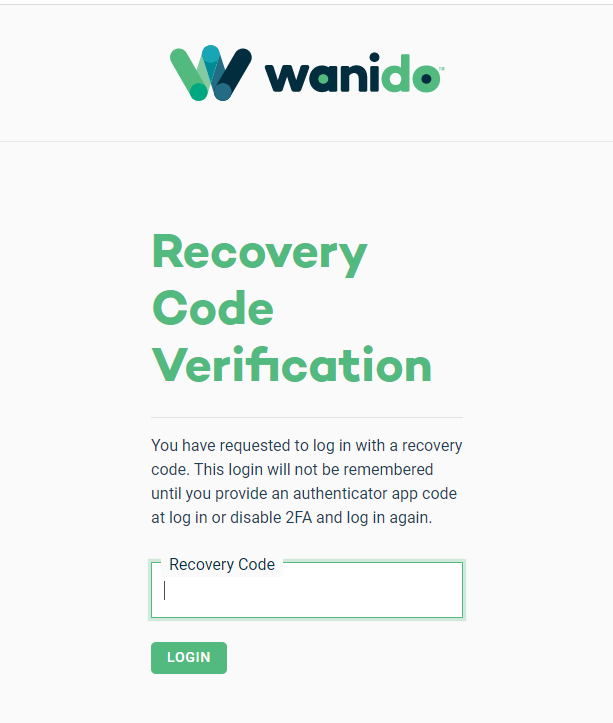
Once you have successfully entered a recovery code, you will need to re-setup two-factor authentication using the above steps.