Support service provided by Wanido
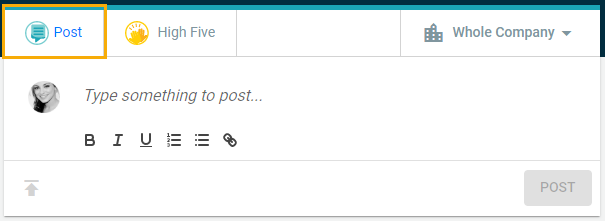
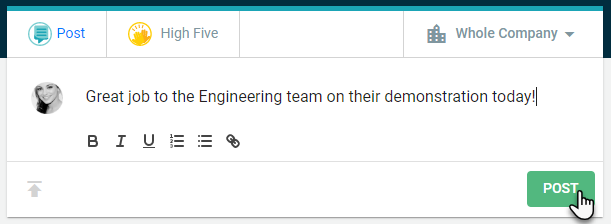
You can post on the social feed by clicking on the Post icon.
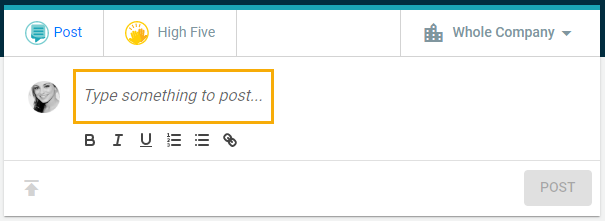
Then enter your message in the "Type something to post..." section.
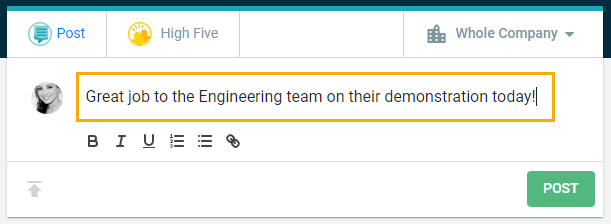
Once you are ready to post your message, select the green Post button.
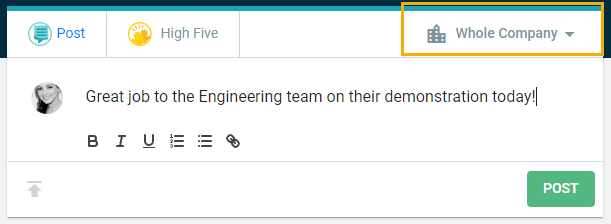
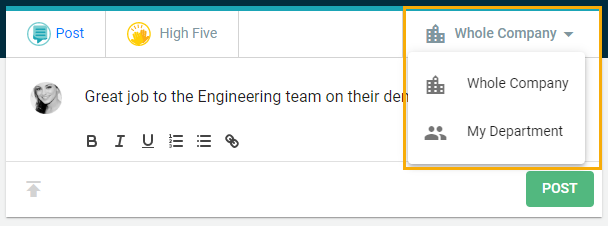
You can also change the view setting in the upper right-hand corner of the post box.
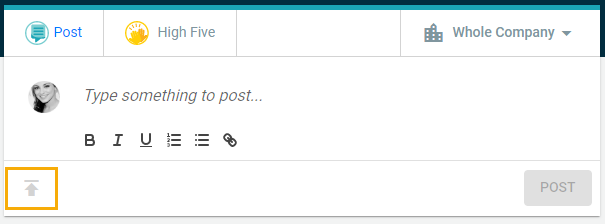
If you would like to post a picture, you can do so by clicking the upload button below the text box.
You will then be able to select the photo you would like to upload by either searching for it through the options on the left or by dragging and dropping the image.
*Please note that if you choose the link option, you will need to click on the actual image and copy the link from the site it's on.
When selecting an image:
- Preferred Types: JPEG, PNG
- Max Files: 1
- Max Size: 5 MB
- Suggested Minimum Size: 586 px X 344 px (Height X Width)
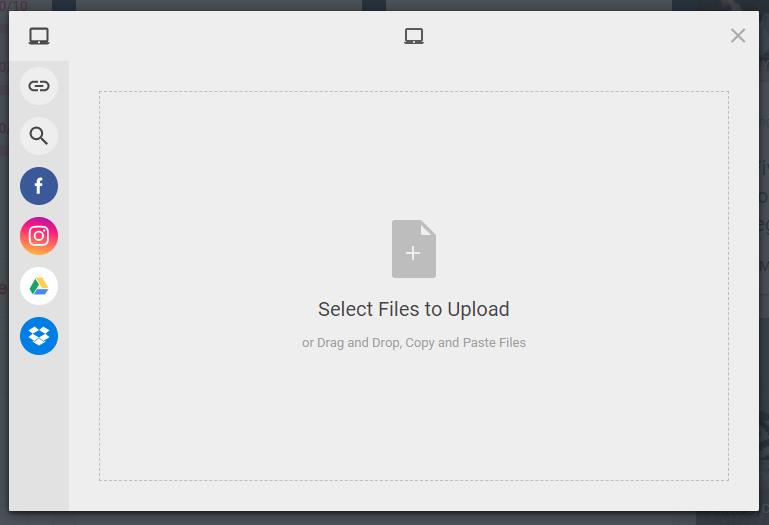
Once you have selected your image, you can then edit it. Once you are done, click the blue Upload button.
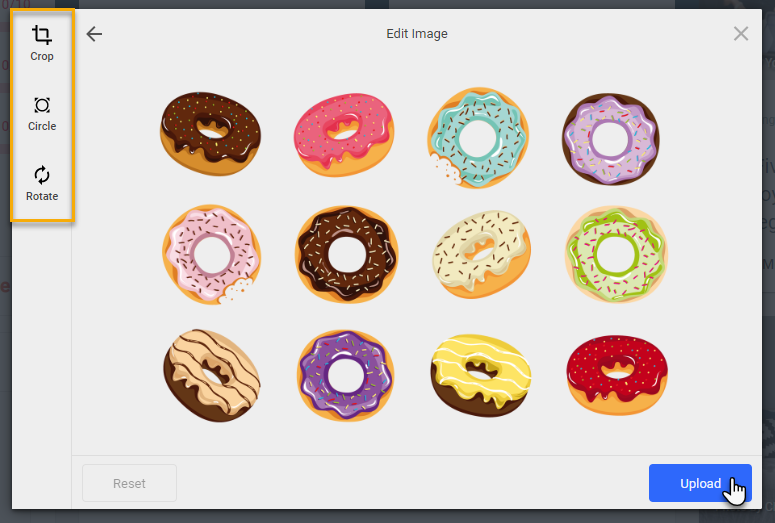
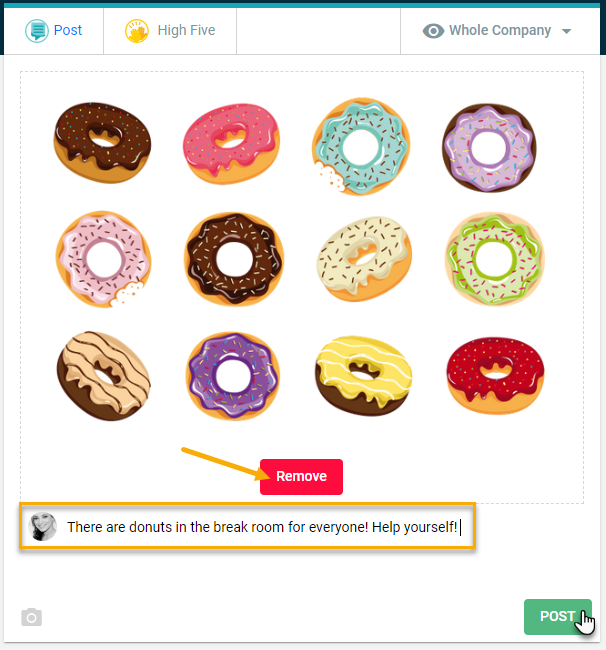
You will then be able to add text to the post with your image.
You also have the option to remove the picture if you change your mind.
Otherwise, once you are finished, click the green Post button.