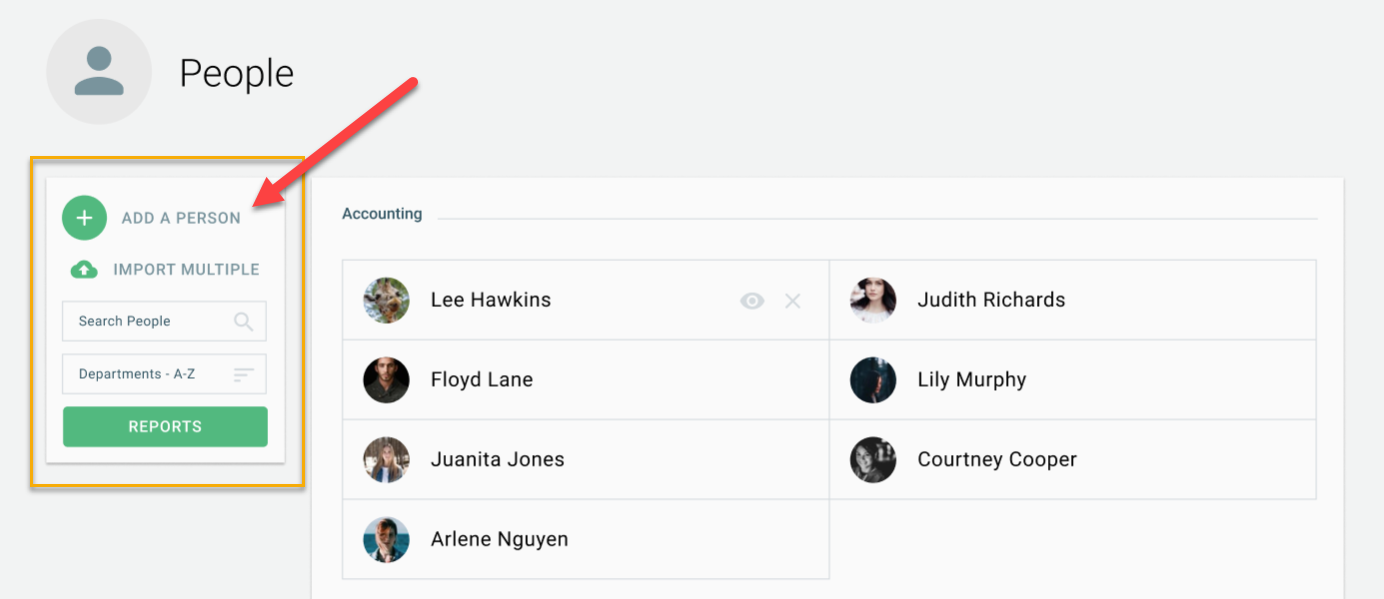
To add employees after initial setup, click on the People tab at the top of the page when you have logged in as an Administrator.
*If you are looking for an automated process, please reach out to our Engagement Team at wanihelp@wanido.com
Click on “Add A Person”.
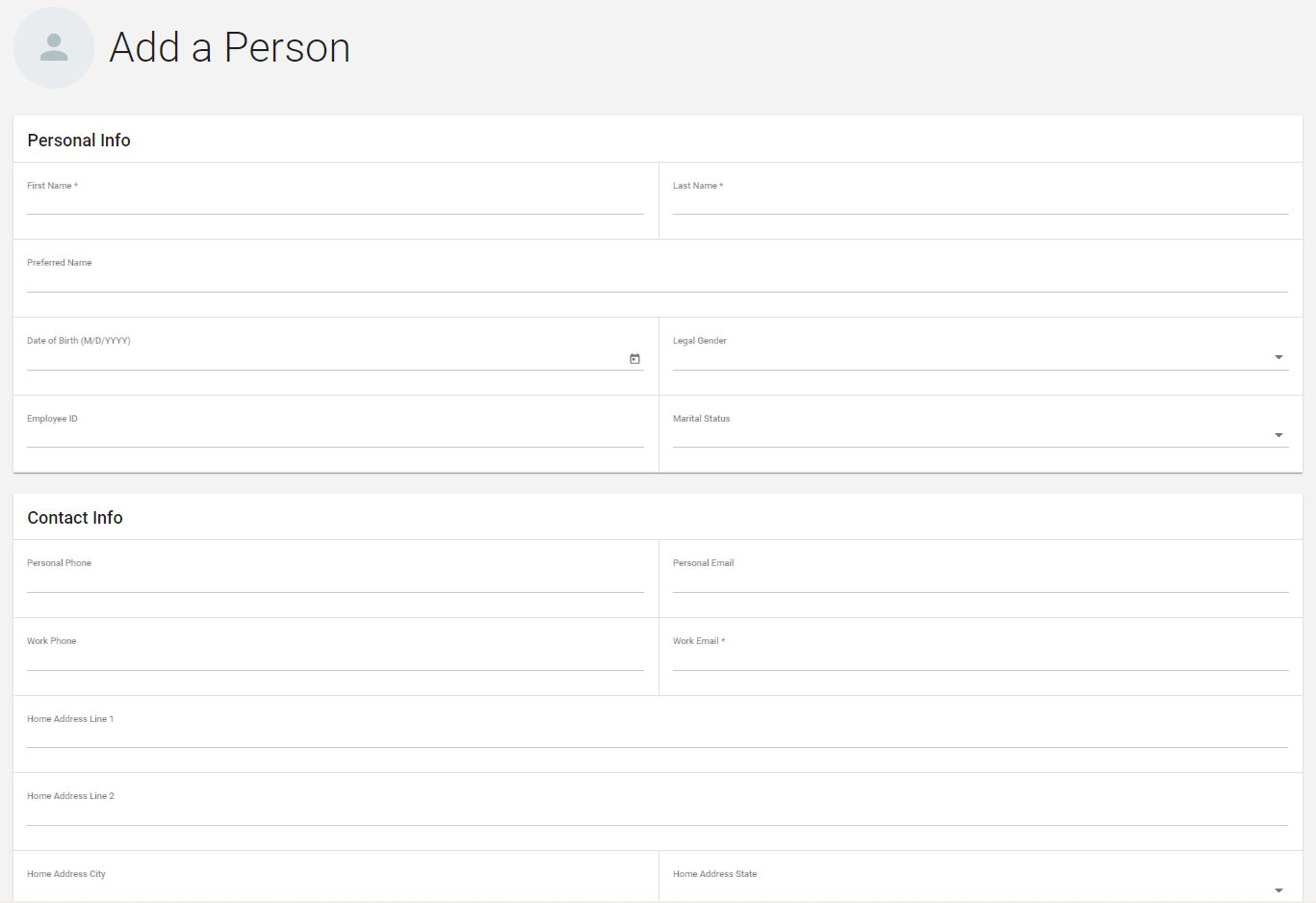
Next, you will add in the required details (first name, last name, work email address) and any other details (ex: department, location, etc.).
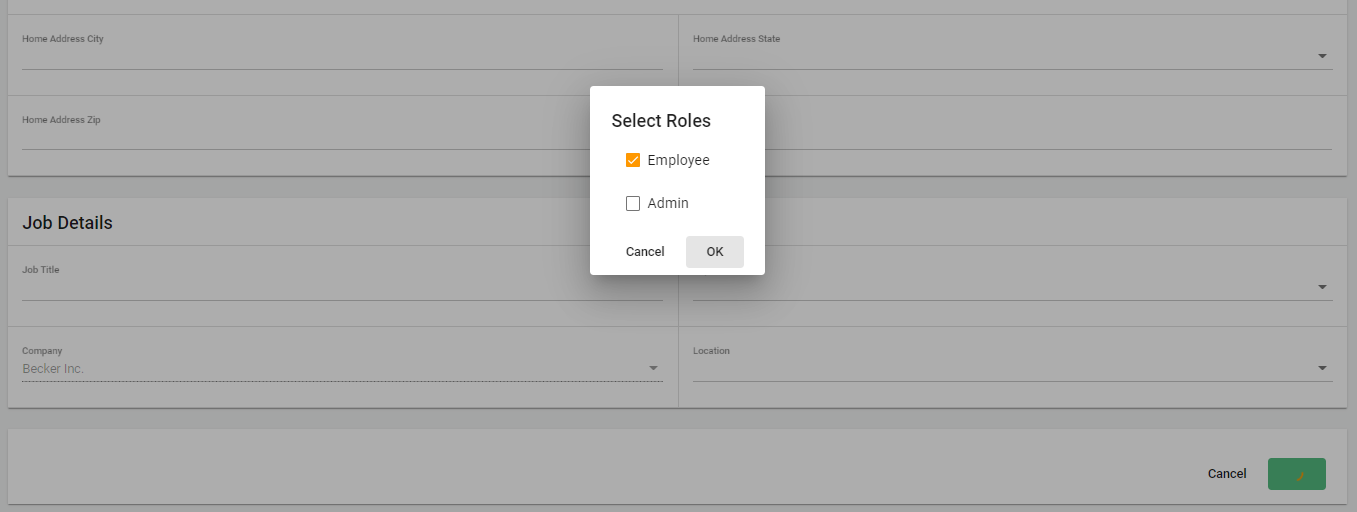
Upon saving you will be able to select if they should have Administrator privileges or just employee privileges. Once saved, an email invite will be sent out automatically.
You can also import multiple employees via the Import Multiple button.
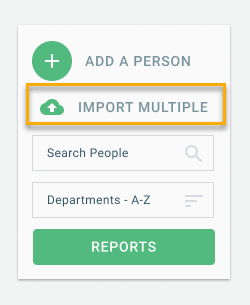
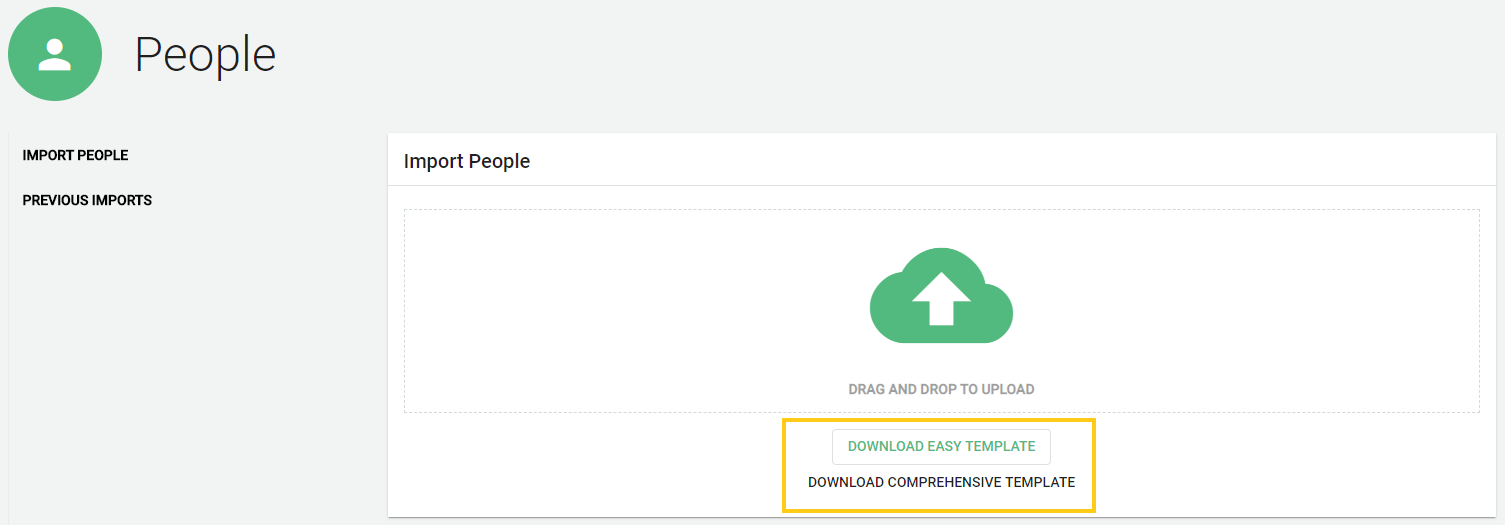
Under the Import Multiple, you can download one of our two templates to add in multiple employees.
*Easy Template - only requires three fields of information
*Comprehensive Template - allows for the ability to include departments, locations, etc.
Once you have the template ready, you can drag and drop it to start the upload process. The file format must be saved as a .csv file vs. .xls or .xlsx.
*Please note this may take a little bit of time depending on the size of the file.
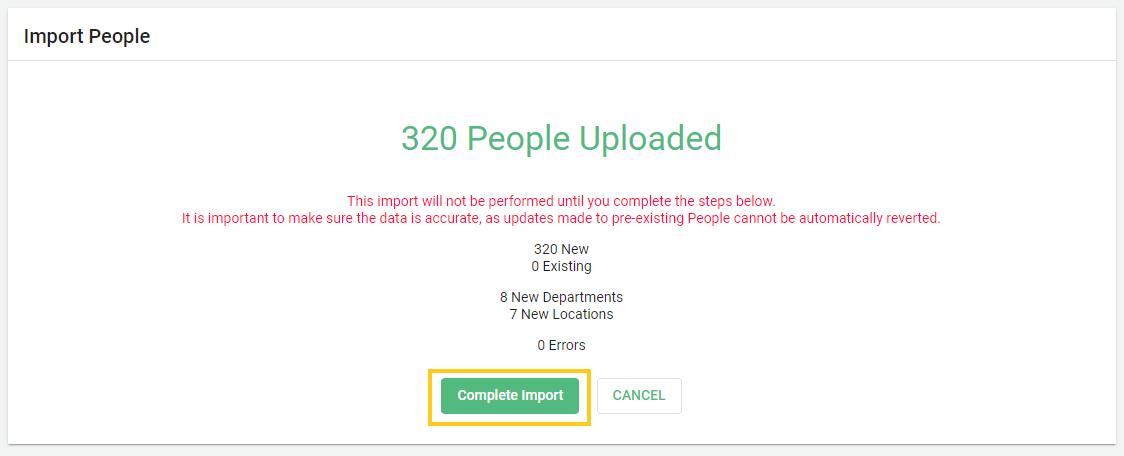
Once the upload process has finished you will be able to complete the import or review any errors.
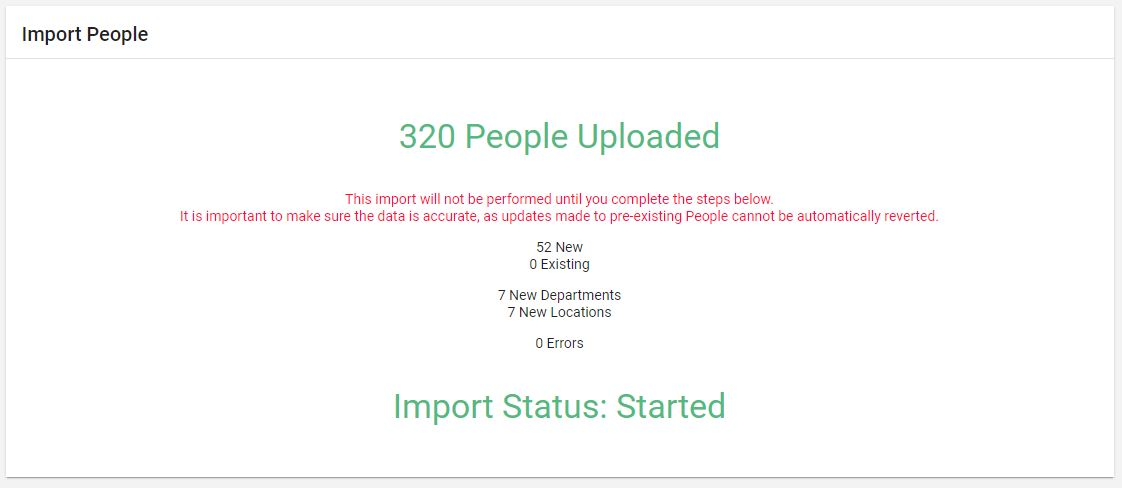
This will change the status to Queued and then Started.
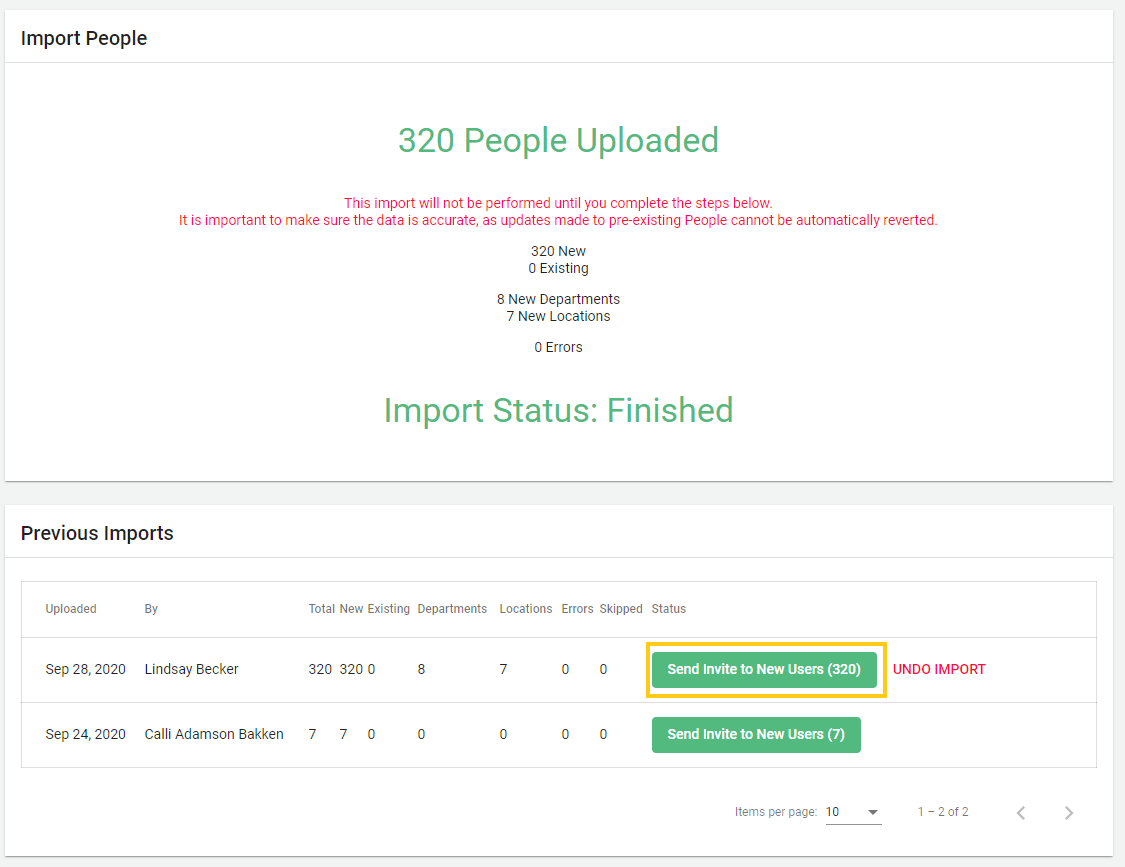
Once the import is completed it will show a status of Finished.
Select the Send Invite to New Users button as soon as you've notified your employees about Wanido.
Once your employees have been invited, they will receive an invite, like below.